
Finding your way around
A complete visual guide to Dori's sidebar, inbox, knowledge layers, and command palette — where everything lives and why.
Dori’s interface is designed to keep your focus on getting work done rather than managing files. Here is the complete map of the application.
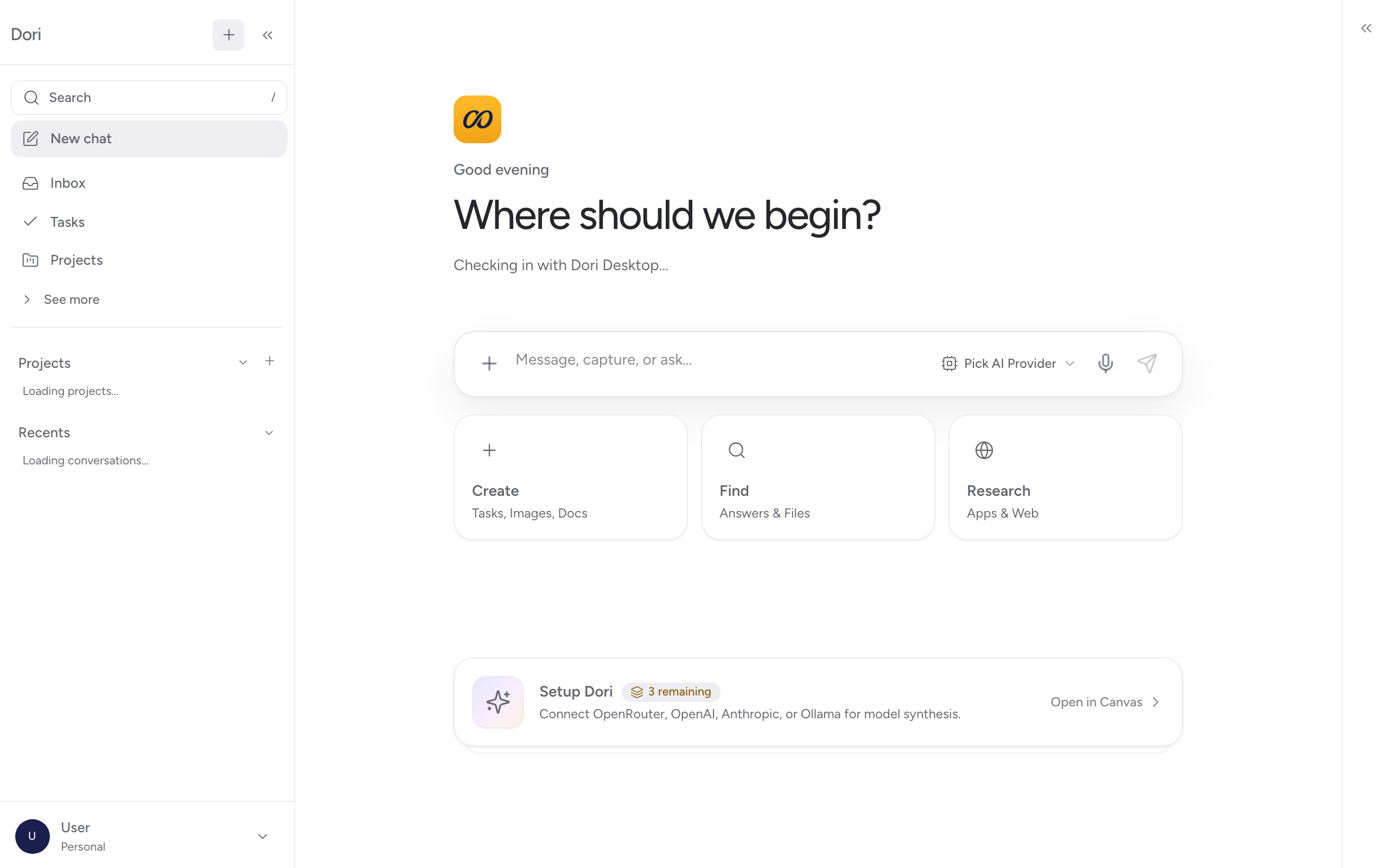
The Main Sidebar
The sidebar organizes your work into intuitive sections:
1. Inbox & Approvals
Your central hub for review. When Dori processes background captures or proposes external actions (like sending an email or executing an automated script), items appear here for your review and approval. See Audit & approvals.
2. Tasks & Commitments
A unified list of action items automatically extracted from your meeting transcripts, voice notes, WhatsApp messages, and project notes. See Automations.
3. Projects & Accounts
- Projects: Dedicated workspaces for active strategic initiatives, launches, and campaigns. See Projects.
- Accounts: Isolated folders for client organizations, partners, and vendors. See Accounts.
4. Relationships (People & Accounts)
Your directory of colleagues, clients, advisors, and organization accounts. Dori automatically links meeting notes, visiting cards, and commitments to specific people and accounts in your vault. See Relationships.
5. Trips
Track travel expenses and receipts for a business trip, scoped to the client or account it’s billable to, through to reimbursement. See Travel expenses without a spreadsheet.
6. Library & Deliverables
Your searchable repository of generated deliverables:
- Meeting Notes: Transcripts and summaries of past calendar calls. See Meeting notes.
- Drafted Documents: Proposals, SOWs, research briefs, and investor updates. See Create & share.
- Presentation Decks: Bolt Slides briefs and HyperFrames video compositions.
7. Settings & Connections
Configure your AI providers, pair WhatsApp, manage watched desktop folders, and set up MCP tool extensions. See Connections.
The Command Palette (/)
For fast navigation without clicking through the sidebar, press / anywhere in the app to open the Command Palette. (⌘/Ctrl + J is a separate shortcut — it toggles the Chat Dock.)
- Search Vault: Search past meeting notes, decisions, and people instantly.
- Ask Anything: Query Dori in plain language (e.g. “Summarize our last 3 calls with Meridian”).
- Quick Actions: Create a new Account, start a draft, or export a HyperFrames presentation.
Next Steps
Now that you know your way around, continue to Connect your vault.